Deepy Zero
Make the next thing.
A lightweight assistant for focused requests: generate an image, edit selected media, trim a clip, resize a file or transcribe a recording. A good fit for smaller supported local language models.
Meet Deepy · Zero & Prime
Deepy brings WanGP’s video, image, audio and 3D tools into a conversation. Describe the result, let your agent coordinate the steps, and review the work together—in your browser or the phone-friendly Web App.
Your WanGP computer runs the generation. Your phone connects to it to send requests and follow the results.
Already have an agent you like? Bring your own through MCP and use the same WanGP models and tools.
AT YOUR DESK
Open Ask Deepy beside your generation controls and galleries. Select media, describe a change and follow the assistant’s work in your browser.
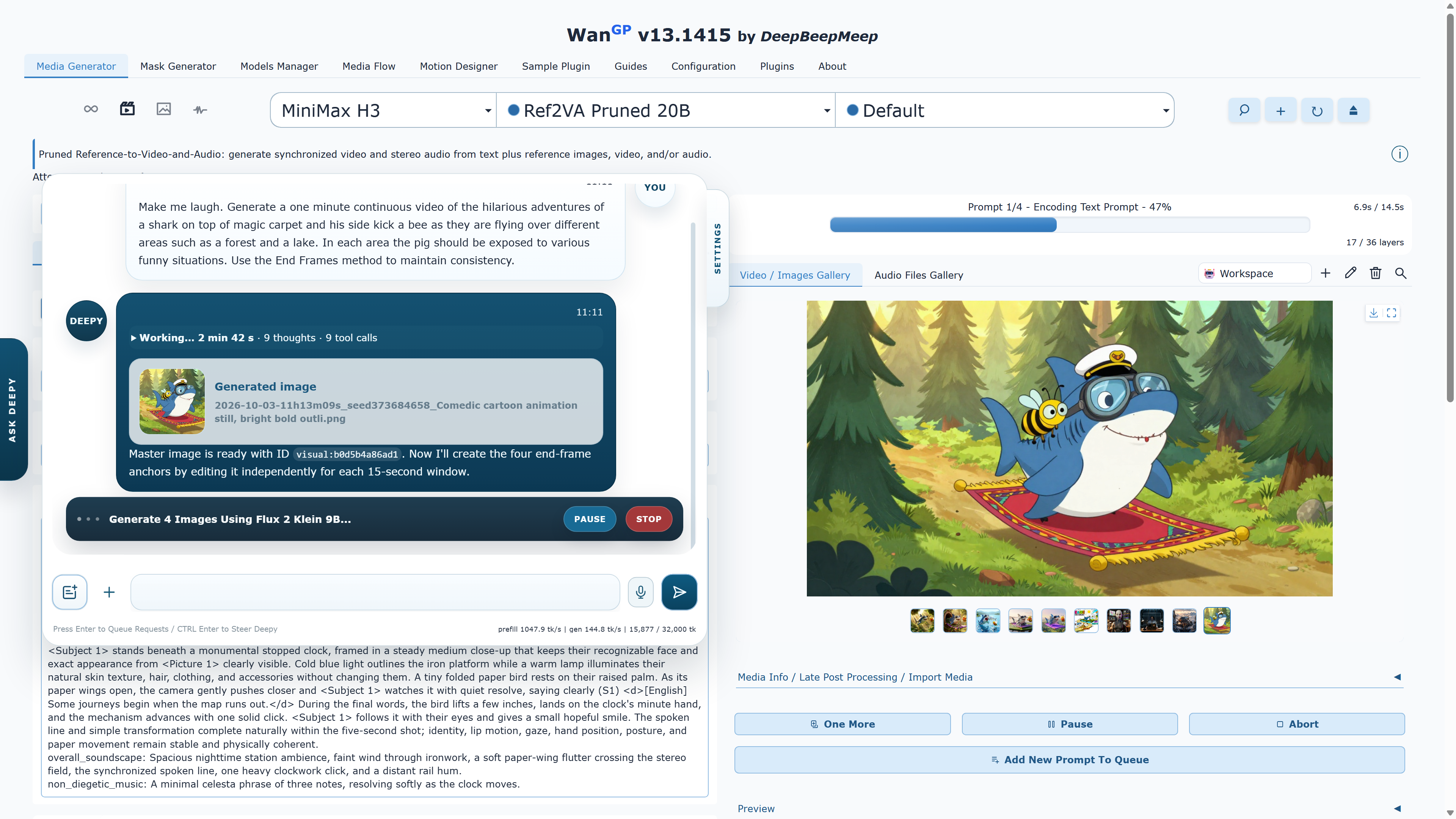
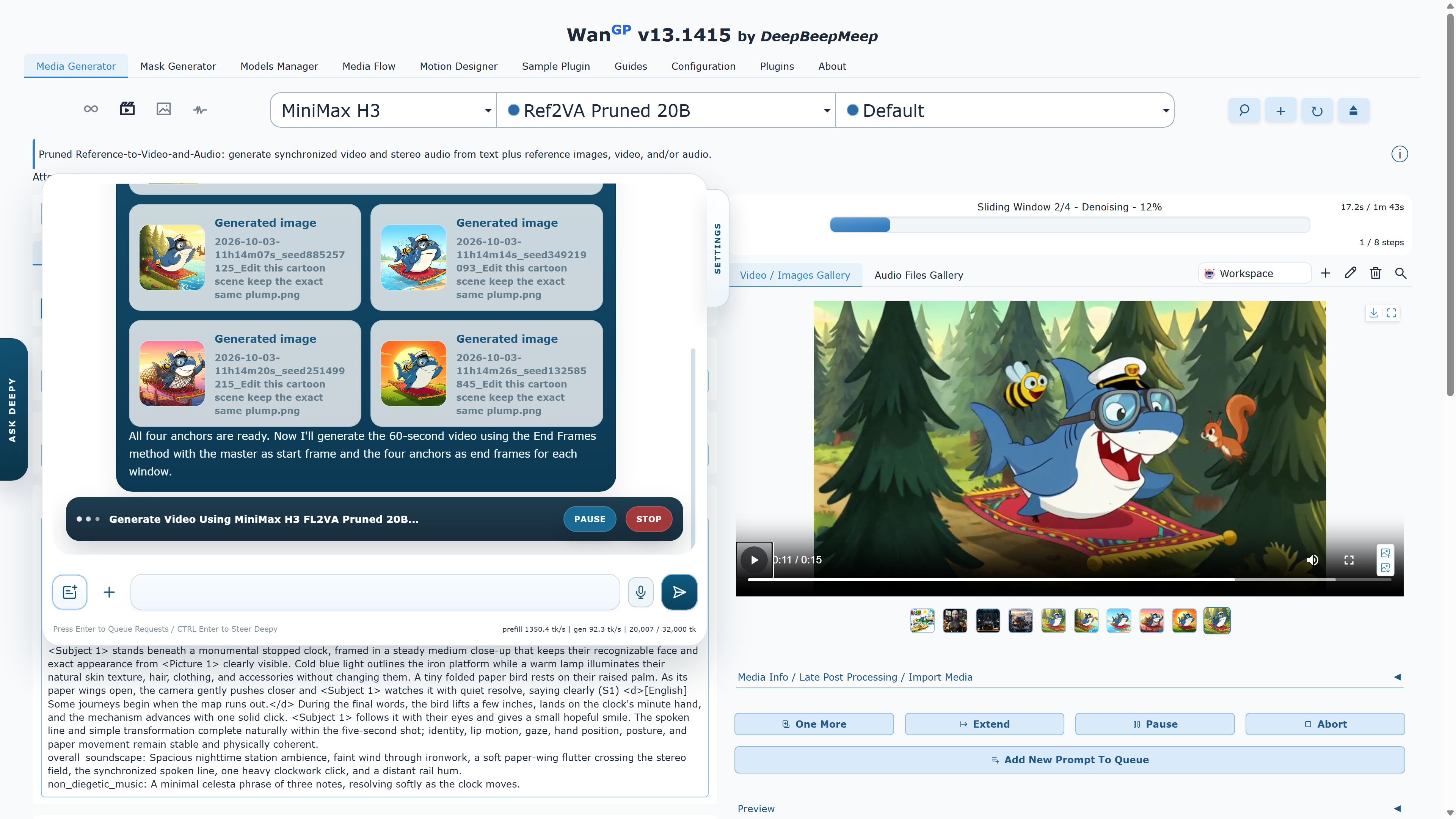
The Deepy Web App and full WanGP interface share the conversation, galleries, progress and queue when connected to the same running server. Check a result or launch the next generation from your phone while your computer keeps creating.
01 / YOUR ASSISTANT
Choose the assistant that fits the work. Both share WanGP’s generation tools, galleries and saved sessions.
Deepy Zero
A lightweight assistant for focused requests: generate an image, edit selected media, trim a clip, resize a file or transcribe a recording. A good fit for smaller supported local language models.
Deepy Prime
Plan a project, choose compatible models, combine assets, inspect intermediate results and revise them. Run a supported local language model, or configure a supported remote engine for the assistant.
02 / KEEP CREATING
Start with a prompt, a photo, a recording or media already in your workspace.
Generate & edit
Create images, video, speech, songs and 3D assets. Use references, inspect frames and rendered 3D views, and turn a result into the input for the next step. Deepy can also prepare a character sheet from a 3D asset.
Prepare & finish
Ask for Magic Mask selections, RGBA conversions, extracted clips or resized media. Prime can mix audio, replace soundtracks and add selectable subtitle tracks.
Pause & return
Enable saved sessions to preserve conversations and media. Pause and resume a task, switch projects, or follow the same running session from another device.
03 / GET STARTED
The Web App connects to your running WanGP installation.
In Configuration → Prompt Enhancer / Deepy, choose Zero or Prime, select a supported engine, and save.
Follow “Web app →” in Deepy’s settings. Connect your phone to the same running server to keep chat, galleries, progress and the queue synchronized. Use the network setup guide for remote access.
Upload a photo or recording, describe your next step, and review the result. Add the Web App to your phone’s home screen for quick access.
Local language models support offline assistant use once the required files are downloaded. A configured remote engine needs internet access and sends the conversation to that provider.